
MAAD-AF Bonus Module: Obfuscate Access over TOR
This module allows attackers to hide the source of the attacks by routing all attack traffic through TOR nodes. This module requires TOR executable installed on the local host.
Module Requirements
Prior to using MAAD-AF to obfuscate traffic over TOR, a TOR executable needs to be installed on the system which MAAD-AF is running. This section will briefly cover installing TOR onto a typical Windows 10 host.
However, in the event MAAD-AF is able to run on Linux or MacOS hosts, an operator would need to install an appropriate TOR binary onto those systems, which would have a different process not covered here.
Configuring MAAD-AF to use TOR
Navigate to the TOR Project download site and download the latest version of TOR for Windows.
Install TOR for Windows. After installing, take note of the full path of the TOR parent folder (right-click the folder and note or copy the full path).
In the example below, the full path of the TOR parent folder is
C:\Users\username\Desktop\Tor Browser.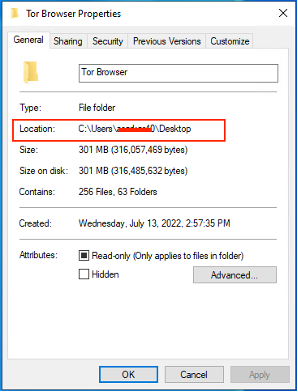
After installing TOR and taking note of its folder path, open the
Library\MAAD_Config.ps1file in a text editor, such asnotepad.exe.Scroll down to the
TOR Configurationsection. Update the value in the screenshot below with the full path copied above.
Exit MAAD-AF and re-launch.
Module Overview
After re-launching MAAD-AF, enter
Yesduring startup to the anonymity prompt, or optionally enter module16: Obfuscate Access using a TOR proxyfrom the main Attack Arsenal menu.Follow the on-screen prompts to establish anonymity.
NOTE: MAAD-AF will launch a SOCKS proxy over TOR in a seperate PowerShell window. Do not close this window; simply ignore it and continue operation.
NOTE: While using the TOR proxy, the overall responsiveness of MAAD-AF may be a bit slower since the communication is now routed through the TOR network.
Validation
There will be no visible difference in using MAAD-AF with or without TOR. In order to validate that connections are being routed through TOR, open any browser and navigate to a site such as https://ifconfig.io to validate that the displayed IP address is not your own.
Additionally, it is possible to validate that the displayed IP address is an active TOR node by visiting https://metrics.torproject.org/exonerator.html.